

Stock alerts: companies, investors and events you follow
Follow the handful of companies, investors and events you care about and let the app tell you when something happens, instead of checking 973 companies every morning. What arrives in the app, what arrives by email, and how the digest stays short enough to read.
Last updated September 9, 2026
You cannot check 973 companies every morning, and you should not try. Alerts turn that around: follow the handful you care about, and let the app tell you when something happens to them.
What you can follow
Five categories, each switched on or off independently.
Companies
Any company you choose to follow. Smart money trades, results, and Top 10 movements for that name.
Investors
Specific insiders and institutions. You hear when they file, not when anyone files.
Events
Earnings dates, macro releases and other scheduled events, with the result when it lands.
New editions
A new monthly Top 10, and the position changes disclosed with it. Both go out when the edition publishes, never as a live instruction to trade.
Moonshot Detected companies
The month's momentum picks inside the Top 10, announced with each edition. Some months there are none. The slots follow market conditions.
The feed and the settings
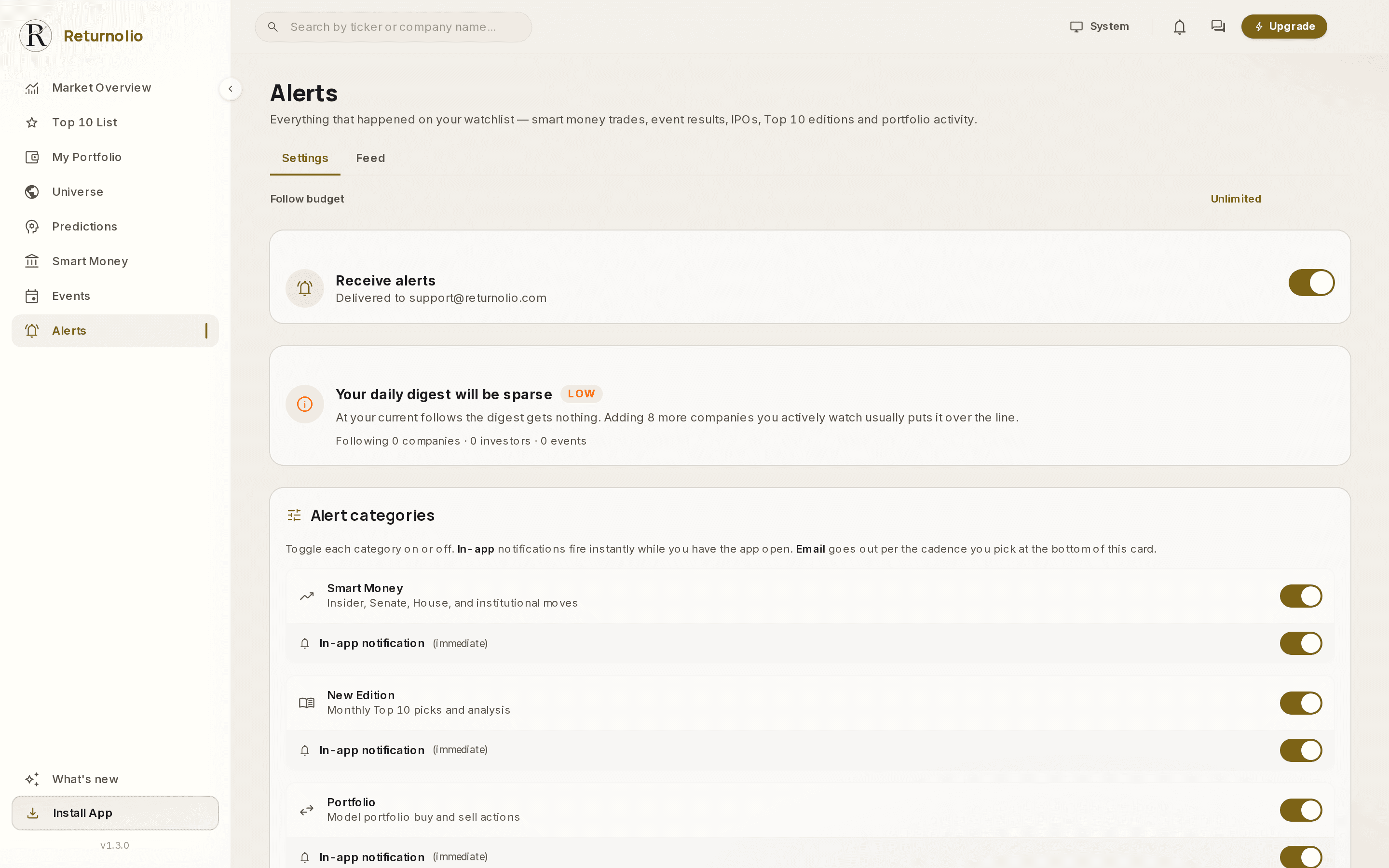
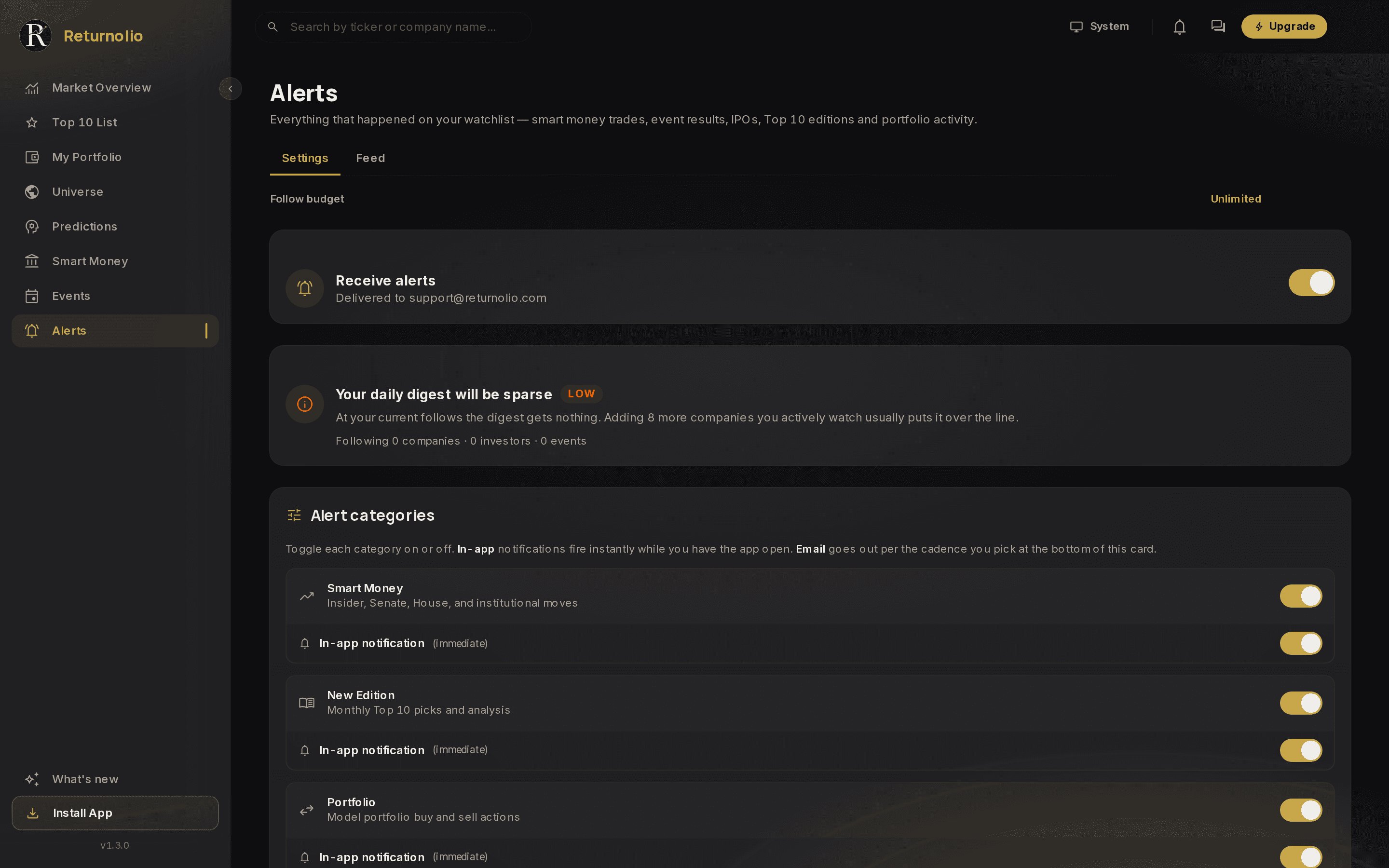
Alerts has two tabs. Feed is what happened since you were last here. Settings is where you decide what counts as worth telling you.
The volume estimate
The digest card is the part worth paying attention to. It counts what you follow, estimates the resulting weekly volume, and tells you which way you are drifting.
This exists because alert systems fail in both directions. Too few follows and the digest is empty, so you stop opening it. Too many and it becomes a wall you archive unread. Showing you the number in advance is more useful than letting you discover it over three weeks of email.
In app and by email
Each category has its own switch, and its own control over whether it also fires in the app immediately. In-app notifications appear under the bell in the header.
Email is one setting for the whole digest rather than a dial per category: you pick a cadence once, and everything you have switched on arrives together. That is deliberate. A separate schedule per category is how you end up with six emails a day from one product.
Start narrow
Follow five companies and one or two investors first. Live with it for a fortnight, then widen. It is much easier to add follows to a quiet digest than to work out which of forty follows is generating the noise.
What we do not alert on
There are no price alerts. No "AAPL crossed $200", no percentage-move triggers, no technical levels. We left them out on purpose: every broker and charting tool already does it, they do it faster than we would, and it pulls toward exactly the short-horizon behaviour the rest of the product is built to discourage.
What you get instead is alerts on things that change the thesis: a filing, a result, a new edition of the Top 10.
Educational and proprietary. This explains what our research does, not the exact formula behind it, and it is not personalised investment advice. See the full disclaimer.
Was this page helpful?